mirror of
https://github.com/nocodb/nocodb.git
synced 2026-04-30 16:16:50 +00:00

105 lines
4.6 KiB
Markdown
105 lines
4.6 KiB
Markdown
---
|
|
title: "Links"
|
|
description: "Understanding Link Columns!"
|
|
---
|
|
|
|
### Supported relationship types:
|
|
|
|
- One to many
|
|
- A Table record in first table is related to more than one record of second table. But second table record maps to only one entry of first table
|
|
- NocoDB refers to this category of relationship as **has many**
|
|
- For every **has many** relation defined, NocoDB augments **belongs to** relationship column in the adjacent table automatically
|
|
- Example: Country **has many** Cities. (other way mapping > City **belongs to** Country )
|
|
- Many to many
|
|
- A Table record in first table is related to more than one record of second table; second table record can also map to more than on record of first table.
|
|
- NocoDB refers to this category of relationship as **many to many**
|
|
- For every **many to many** relation defined between tables, NocoDB augments **many to many** relationship column in the other table automatically
|
|
- Example: Film **has many** Actors. Actor **has many** Films (works on many films)
|
|
|
|
Further details of relationship types can be found [here](https://afteracademy.com/blog/what-are-the-different-types-of-relationships-in-dbms)
|
|
|
|
From Release v0.111.0, table records can be connected through relationships using the **Links** column type.
|
|
It is important to note that, earlier supported column type **LinkToAnotherRecord** for creating relations is considered deprecated. While the old datatype is still supported for backward compatibility, it is no longer possible to create new fields of that type.
|
|
|
|
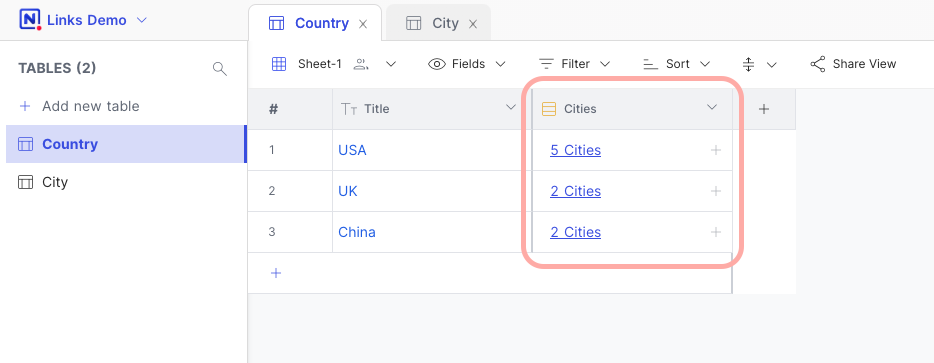
The main distinction between these two column types lies in how the contents are displayed within the cell when links are established between two tables. With the **LinkToAnotherRecord** column type, the cell displays the **Primary value** of the related records. On the other hand, the **Links** column type only shows the **count** of related records.
|
|
The decision to switch over to new column type was made to ensure better performance and scalability of the application, more so when the records & the number of records in the related table is large.
|
|
|
|
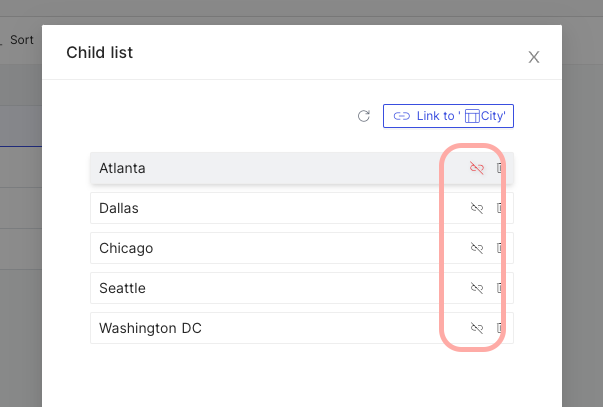
Child list to display the related records can be accessed by clicking on the link count displayed on the cell.
|
|
Except for the column type, the following procedures remain same as before
|
|
- Create, update & delete a relationship column,
|
|
- Link & unlink a record,
|
|
- Create a lookup and rollup columns
|
|
|
|
Workflow details are captured below.
|
|
|
|
## Adding a relationship
|
|
|
|
|
|
|
|
|
|
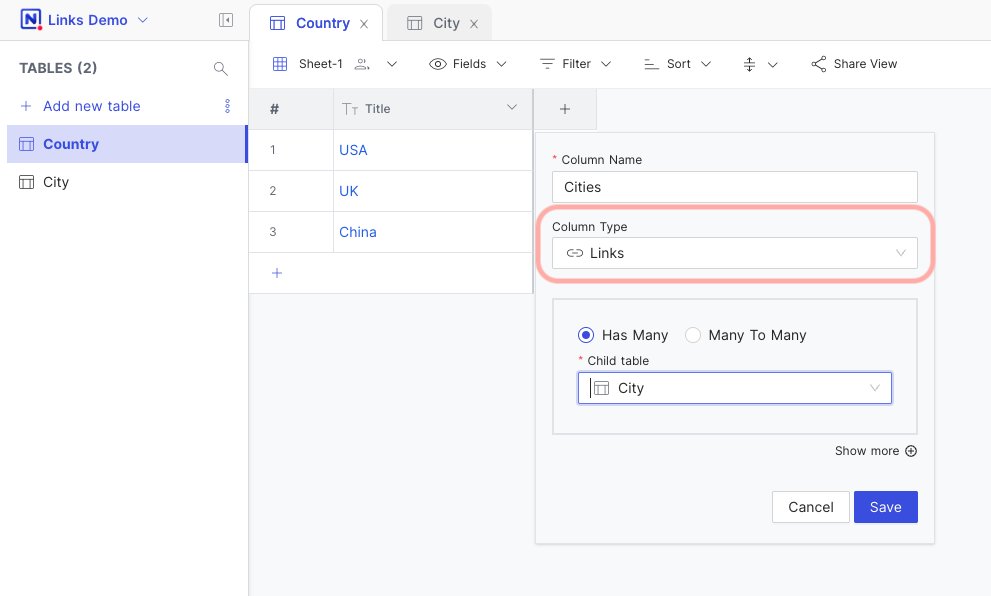
1. Create column
|
|
Click on '+' button at end of column headers
|
|
|
|
2. Update column name
|
|
Input name in the text box provided
|
|
|
|
3. Select column type
|
|
Select Column type as "Links" from the drop-down menu
|
|
|
|
4. Choose relationship type
|
|
- 'Has Many' corresponds to the 'One-to-many' relationships
|
|
- 'Many To Many' corresponds to the 'Many-to-many' relationships
|
|
|
|
5. Select child table from drop down menu
|
|
|
|
6. Click on 'Save'
|
|
A new column will get created in both the parent table & child table
|
|
|
|
## Linking records
|
|
|
|
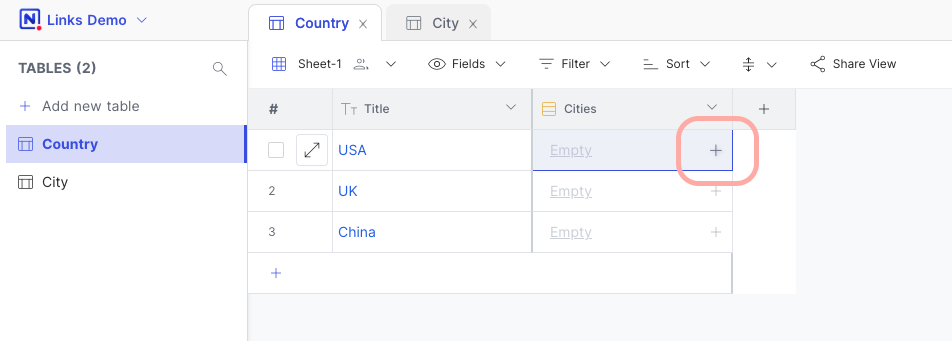
### 1. Open link record tab
|
|
|
|
Click on the '+' icon in corresponding row - cell
|
|
|
|
|
|
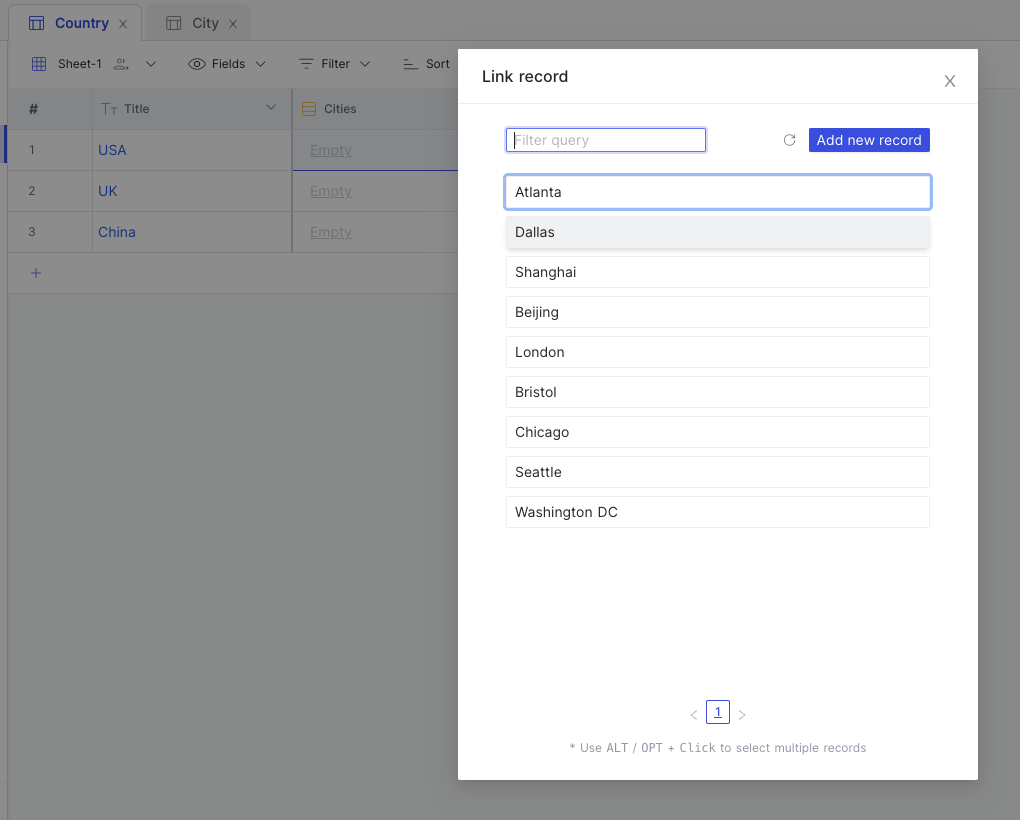
### 2. Select from the option displayed
|
|
|
|
Use 'Filter box' to narrow down on search items.
|
|
You can opt to insert a new record as well, using "+ New Record" button.
|
|
You can use `ALT + Click` to insert multiple options together.
|
|
|
|
|
|
|
|
### 3. Column display for "Has Many" relationship
|
|
|
|
Country 'has many' City
|
|
|
|
|
|
|
|
|
|
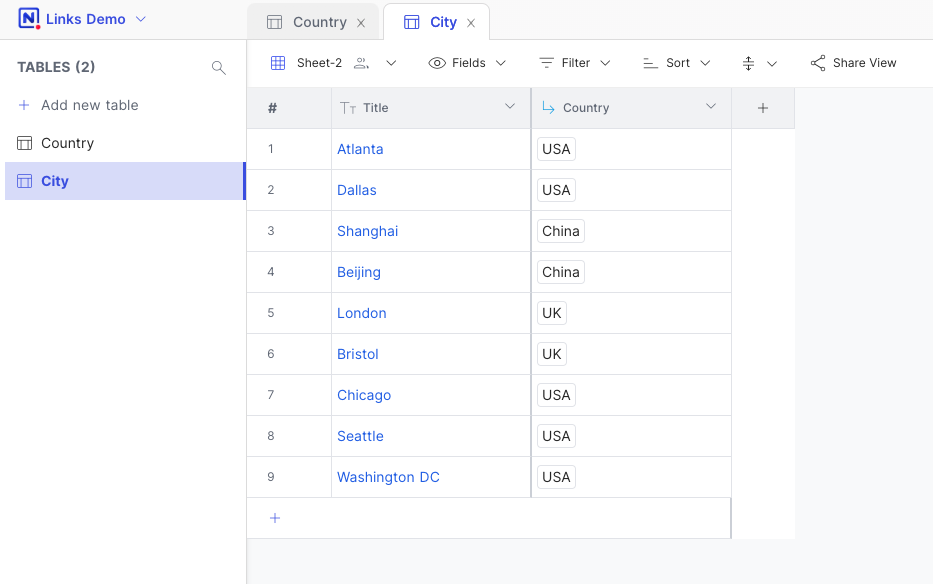
### 4. Column display for "Belongs to" relationship [Automatically updated]
|
|
|
|
City 'belongs to' Country.
|
|
Note: Primary value is still used as cell display value for "Belongs to" as it can have only one associated record.
|
|
|
|
|
|
|
|
|
|
## Unlinking records
|
|
|
|
1. Click on link count to open Child modal
|
|
2. Click on Unlink icon against required item
|
|
|
|
|
|
|
|
|
|
|
|
|
|
|
|
## Link label reconfiguration
|
|
|
|
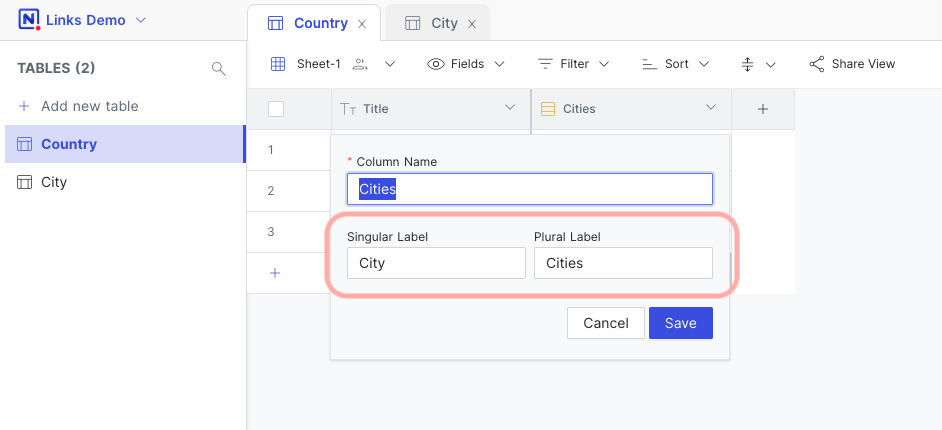
Use column edit menu for **Links** to reconfigure display label
|
|
|
|
|
|
|