mirror of
https://github.com/nocodb/nocodb.git
synced 2026-04-29 19:36:51 +00:00

186 lines
7.8 KiB
Markdown
186 lines
7.8 KiB
Markdown
---
|
|
title: "Webhooks"
|
|
description: "Webhooks"
|
|
position: 1030
|
|
category: "Developer Resources"
|
|
menuTitle: "Webhooks"
|
|
---
|
|
|
|
<announcement></announcement>
|
|
|
|
## Triggers
|
|
|
|
Webhooks allows user to trigger on certain operations on following database operations
|
|
|
|
- AFTER INSERT
|
|
- AFTER UPDATE
|
|
- AFTER DELETE
|
|
|
|
The triggers will trigger asynchronously without blocking the actual operation.
|
|
|
|
### Applications/services
|
|
|
|
| Trigger | Details |
|
|
| --------------- | ---------------------------------------------- |
|
|
| Email | Send email to certain email addresses |
|
|
| Slack | Notify via Slack channel |
|
|
| Microsoft Teams | Notify via Microsoft Teams channel |
|
|
| Discord | Notify via Discord channel |
|
|
| Mattermost | Notify via Mattermost channel |
|
|
| Twilio | Send SMS to certain mobile numbers |
|
|
| Whatsapp Twilio | Send Whatsapp messages to numbers using Twilio |
|
|
| URL | Invoke an HTTP API |
|
|
|
|
|
|
## Accessing Data: Handlebars
|
|
|
|
The current row data and other details will be available in the hooks payload so the user can use [handlebar syntax](https://handlebarsjs.com/guide/#simple-expressions) to use data.
|
|
|
|
> We are using [Handlebars](https://handlebarsjs.com/) library to parse the payload internally.
|
|
|
|
### Example
|
|
|
|
For a table with column names (id, title, created_at, updated_at).
|
|
For INSERT/ UPDATE based triggers, use following handlebars to access corresponding **data** fields.
|
|
|
|
- {{ **data**.id }}
|
|
- {{ **data**.title }}
|
|
- {{ **data**.created_at }}
|
|
- {{ **data**.updated_at }}
|
|
|
|
Note that, for Update trigger - all the fields in the ROW will be accessible, not just the field updated.
|
|
For DELETE based triggers, **only** {{ data.id }} is accessible representing ID of the column deleted.
|
|
|
|
For all trigger, following **user** information associated with person trigger can be accessed.
|
|
|
|
- {{ **user**.id }} : Unique auto incremented NocoDB system value
|
|
- {{ **user**.email }} : User E-mail.
|
|
- {{ **user**.roles }} : User Role amongst [Owner, Creator, Editor, Commenter, Viewer].
|
|
|
|
### JSON format
|
|
|
|
Use {{ json data }} {{ json user }} to dump complete data & user information available in JSON format
|
|
|
|
### Additional references:
|
|
|
|
[Handlebar Guide](https://handlebarsjs.com/guide/).
|
|
|
|
# Application Guide
|
|
|
|
## Discord
|
|
|
|
### 1. Create WebHook
|
|
|
|
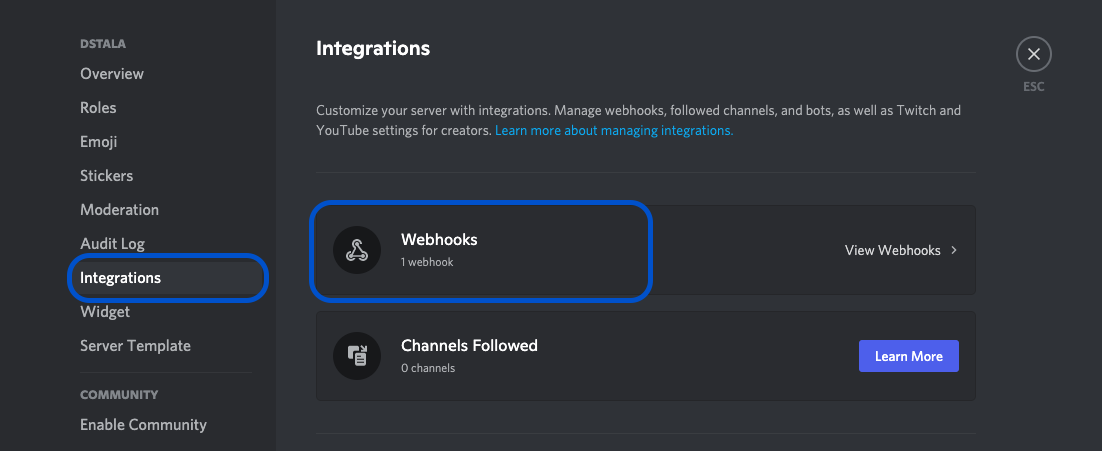
- On Discord, open your Server Settings and head into the Integrations tab:
|
|
- Click the "Create Webhook" button to create a new webhook!
|
|
|
|
|
|
|
|
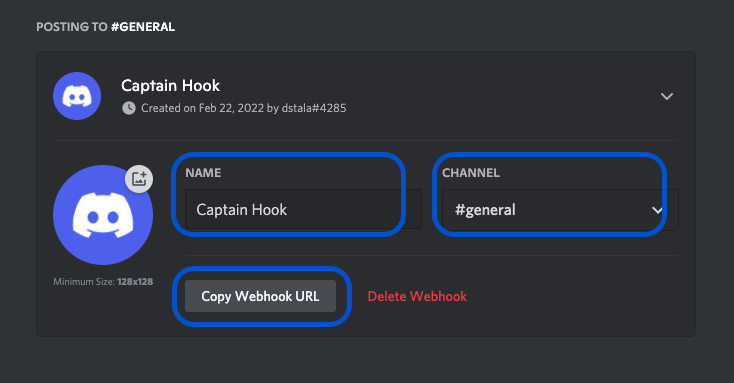
- Choose channel to which this webhook will post to.
|
|
- Copy webhook URL
|
|
|
|
|
|
|
|
(Sample webhook URL: https://discord.com/api/webhooks/945558283756908644/GNUtiGuzfOky6wZ4ce30XuXc1sbPK3Od7EC-4t6hihh5Fovv6oU9OsdT6mGuoL1QlTzj).
|
|
Detailed procedure for discord webhook described [here](https://support.discord.com/hc/en-us/articles/228383668-Intro-to-Webhooks).
|
|
|
|
### 2. Install Plugin
|
|
|
|
- Open 'App Store' (under Settings), hover over Discord tile. Click 'Install'.
|
|
|
|

|
|
|
|
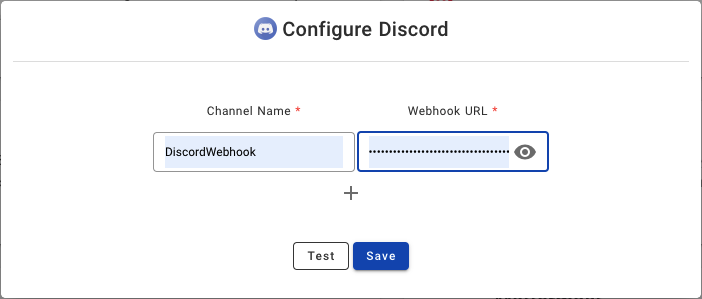
- Provide a name of your choice (not to be confused with Discord Channel name).
|
|
- Paste Discord Webhook URL copied from Step (1.) above.
|
|
|
|
|
|
|
|
### 3. Configure
|
|
|
|
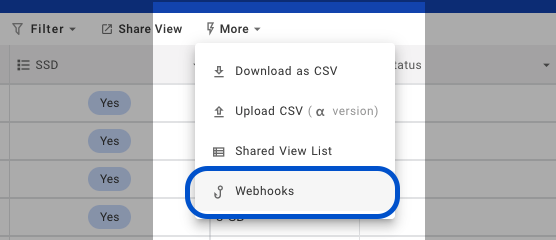
- Open project, associated table.
|
|
- Click 'More' > 'Webhooks'.
|
|
|
|
|
|
|
|
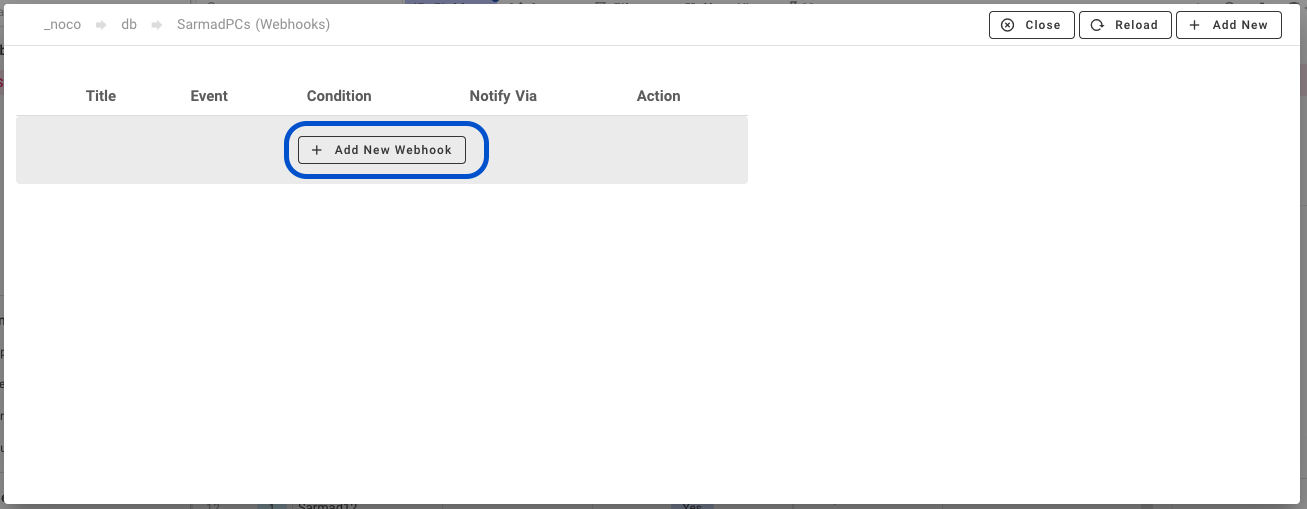
- Click 'Add New Webhook'
|
|
|
|
|
|
|
|
- Configure
|
|
- **Title**: Name of your choice to identify this Webhook.
|
|
- **Event**: Trigger event. Choose between.
|
|
- After Insert: Trigger event for new ROW insertion.
|
|
- After Update: Trigger event for existing ROW updation.
|
|
- After Delete: Trigger event for ROW deletion
|
|
- **On Condition**: [Optional] Enable if you wish to associate additional condition/constraint with the trigger configured above.
|
|
- **Notification**: Select 'Discord'.
|
|
- **Select Discord Channels**: Select from the drop down list, channel name configured in Step (2). Please click on 'Reload' if drop down list is empty.
|
|
- **Body**: Message to be posted over Discord channel, via webhooks on trigger of configured event.
|
|
- Body can contain plain text &
|
|
- Handlebars {{ }}
|
|
|
|
|
|
## Slack
|
|
### 1. Create WebHook
|
|
- Details to create slack webhook are captured [here](https://api.slack.com/messaging/webhooks)
|
|
|
|
### 2. Install Plugin
|
|
- Procedure remain same as listed for DISCORD channel configuration above
|
|
|
|
### 3. Configure Webhook
|
|
- Procedure remain same as listed for DISCORD channel configuration above
|
|
|
|
|
|
## Microsoft Teams
|
|
### 1. Create WebHook
|
|
|
|
- On Teams, open your channel, click on three-dots menu (far right) and select 'Connectors'
|
|
|
|
<img width="319" alt="154971352-6912d53b-cf71-4edd-a319-1c85be85f0c5" src="https://user-images.githubusercontent.com/86527202/155095745-91abd708-834f-4f0e-a33c-ac362e60af0f.png">
|
|
|
|
|
|
- Select incoming webhook & click 'Configure'
|
|
|
|
<img width="442" alt="154971434-0ced97f7-205a-4e2e-8f88-17092cb7771a" src="https://user-images.githubusercontent.com/86527202/155095741-b23ad6b2-1276-46e3-8ada-0d0a871115bb.png">
|
|
|
|
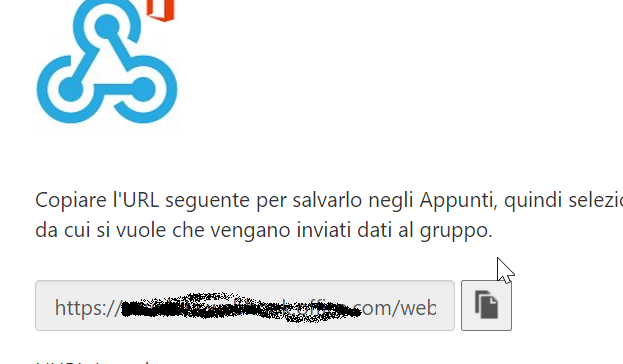
- Create webhook, Copy webhook URL
|
|
|
|
|
|
|
|
|
|
### 2. Install Plugin
|
|
|
|
- Open 'App Store' (under Settings), hover over 'Microsoft Teams' tile. Click 'Install'.
|
|
|
|

|
|
|
|
|
|
- Provide a name of your choice (not to be confused with Teams Channel name).
|
|
- Paste MS Teams Webhook URL copied from Step (1.) above.
|
|
|
|
<img width="414" alt="154971222-7fe2c25a-d8c6-46b0-ba1e-a05ff1cf6537" src="https://user-images.githubusercontent.com/86527202/155095720-ff1c052c-a4a7-4c10-8f30-d779dac336f3.png">
|
|
|
|
### 3. Configure
|
|
|
|
- Open project, associated table.
|
|
- Click 'More' > 'Webhooks'.
|
|
|
|

|
|
|
|
- Click 'Add New Webhook'
|
|
|
|

|
|
|
|
- Configure
|
|
- **Title**: Name of your choice to identify this Webhook.
|
|
- **Event**: Trigger event. Choose between.
|
|
- After Insert: Trigger event for new ROW insertion.
|
|
- After Update: Trigger event for existing ROW updation.
|
|
- After Delete: Trigger event for ROW deletion
|
|
- **On Condition**: [Optional] Enable if you wish to associate additional condition/constraint with the trigger configured above.
|
|
- **Notification**: Select 'Microsoft Teams'.
|
|
- **Select Teams Channels**: Select from the drop down list, channel name configured in Step (2). Please click on 'Reload' if drop down list is empty.
|
|
- **Body**: Message to be posted over Teams channel, via webhooks on trigger of configured event.
|
|
- Body can contain plain text &
|
|
- Handlebars {{ }}
|